
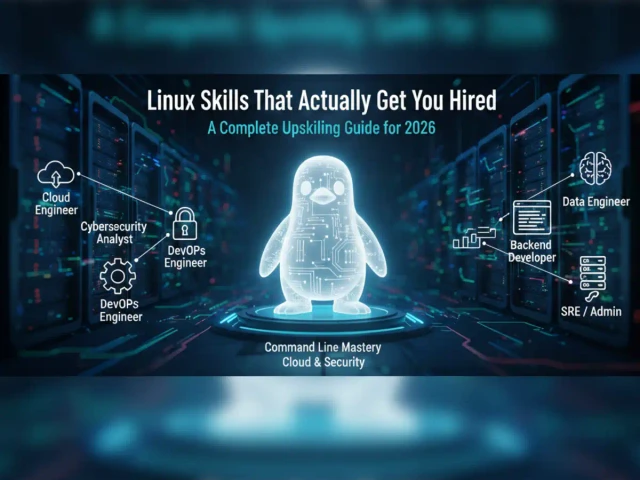

Linux continues to attract users who want greater control, flexibility, privacy, and performance from their computers. Whether you are a beginner exploring Linux for the first time or an experienced user managing multiple systems, learning practical shortcuts can make everyday tasks much easier. In 2026, Linux distributions offer powerful desktop environments, improved hardware compatibility, advanced security features, and increasingly efficient command-line tools. However, getting the most from Linux requires more than simply installing an operating system.
For pblinuxtech users, understanding useful commands, system maintenance techniques, security practices, and productivity features can significantly improve the overall experience. Small changes such as learning keyboard shortcuts, managing startup applications, monitoring resources, and automating repetitive tasks can save considerable time. The following tips focus on practical techniques that can help Linux users work faster while keeping their systems reliable and secure.
Learn Essential Terminal Commands
The Linux terminal remains one of the most powerful tools available to users. Although graphical applications make many tasks simple, the command line provides direct access to system functions and can often complete tasks much faster. Beginners should start with commands such as pwd for checking the current directory, ls for viewing files, cd for changing directories, and mkdir for creating folders.
File management commands are equally important. Learning how to copy, move, rename, and remove files can make everyday administration easier. Users should also understand commands such as cat, less, grep, and find, which are useful for reading files and locating specific information. As your confidence grows, combining commands with pipes and redirection can help you create efficient workflows without opening multiple applications.
Keep Your Linux System Updated
Regular updates are one of the simplest ways to maintain a reliable Linux computer. Updates can provide security patches, bug fixes, hardware improvements, application upgrades, and performance enhancements. Ignoring available updates for long periods can leave your system exposed to known vulnerabilities or compatibility problems.
Before installing major upgrades, it is sensible to check available disk space and ensure important personal files are backed up. Users should also avoid interrupting an upgrade process because incomplete package operations can sometimes create configuration problems. For pblinuxtech users, developing a consistent update routine is an important part of long-term Linux maintenance.
Master Keyboard Shortcuts
Keyboard shortcuts can dramatically improve productivity. Instead of repeatedly navigating menus, users can perform common actions almost instantly. The exact shortcuts depend on the desktop environment, but common combinations can help open terminals, switch applications, lock the screen, search for files, or move between workspaces.
Virtual desktops are especially useful for people who regularly work with several applications. You might dedicate one workspace to communication, another to research, and another to development. This approach reduces desktop clutter and makes it easier to concentrate on individual tasks.
Useful shortcut habits include:
- Learn the shortcuts for your desktop environment.
- Use application switching instead of repeatedly minimizing windows.
- Create custom shortcuts for frequently used programs.
- Use multiple workspaces for different tasks.
- Practice shortcuts regularly until they become automatic.
Monitor CPU, Memory, and Storage Usage
A slow Linux computer is not always caused by outdated hardware. Background applications, excessive browser tabs, memory-heavy programs, and insufficient storage can all affect performance. Linux provides several tools for identifying resource consumption.
Commands such as top and htop can show running processes and resource usage. Disk-related tools can help identify how much storage remains available. Monitoring these resources gives you a clearer picture of what is actually slowing the system down.
The following table highlights useful categories of Linux tools:
| Task | Useful Tool or Approach | Main Benefit |
|---|---|---|
| Process monitoring | top or htop | Identify resource-heavy processes |
| Disk usage | df | Check available storage |
| Folder size | du | Find large directories |
| Memory information | free | Check RAM usage |
| System information | uname | View kernel details |
| File searching | find | Locate files efficiently |
Understanding these tools allows pblinuxtech users to troubleshoot performance problems instead of guessing about their causes.
Manage Startup Applications
Many Linux desktop environments automatically launch programs when you sign in. While some startup services are necessary, unnecessary applications can increase boot time and consume memory in the background.
Review your startup applications periodically and disable programs you do not need immediately after logging in. Be careful with system services because disabling essential components can cause unexpected behavior. Focus on applications that you recognize and know you can launch manually when needed.

A cleaner startup environment can make the computer feel faster without requiring hardware upgrades. This is particularly helpful on older computers with limited memory or slower storage.
Use Aliases to Save Time
If you frequently type long commands, Linux aliases can reduce repetitive work. An alias allows you to create a shorter command for something you use regularly. For example, a user might create a short command for frequently checking system information or navigating to a commonly used directory.
Aliases are especially helpful for developers, administrators, and power users who repeat similar commands throughout the day. Start with simple aliases and document them somewhere so you remember what each custom command does.
However, avoid creating aliases that are too complicated or difficult to remember. The purpose of an alias is to simplify your workflow, not create another layer of confusion.
Improve File Organization
Good file organization is an underrated productivity technique. Instead of storing everything in one large folder, create a logical structure for documents, projects, downloads, media, and backups. Consistent naming also makes searching much easier.
Linux gives users powerful options for finding files by name, type, size, modification date, and other characteristics. Learning these search techniques can save time when working with large collections of files.
You should also review your Downloads folder regularly. Temporary installers, archives, duplicate documents, and old files can gradually consume valuable storage.
Make Backups a Habit
No operating system can completely protect you from accidental deletion, hardware failure, corrupted files, or other unexpected events. A reliable backup strategy is therefore essential.
Important personal documents should exist in more than one location. You can maintain an external backup for important files and use automated backup software for regular copies. For particularly valuable data, keeping another backup in a separate physical location provides additional protection.
A useful approach is to prioritize files that would be difficult or impossible to recreate. Personal documents, project files, photographs, configuration files, and other irreplaceable data deserve special attention.
Strengthen Linux Security
Linux has a strong security architecture, but security still depends on responsible user behavior. Use strong passwords, install software from trusted repositories or sources, and avoid executing commands you do not understand.
Users should also be careful when copying terminal commands from forums or social media. A command can make significant changes to your system, especially when executed with administrative privileges.
Other good security habits include:
- Keep the operating system and applications updated.
- Use a standard account for everyday activities when practical.
- Review permissions before executing unfamiliar scripts.
- Remove applications you no longer use.
- Protect sensitive files with appropriate permissions.
- Be cautious with unknown attachments and downloaded scripts.
For pblinuxtech users, security should be treated as an ongoing practice rather than a one-time configuration.
Learn File Permissions
Linux file permissions are fundamental to system security. Files and directories can have permissions controlling who can read, modify, or execute them. Understanding these permissions helps prevent accidental changes and protects sensitive information.
The ls -l command can be used to inspect permissions. Users will commonly encounter permissions associated with the file owner, group, and other users. Commands such as chmod and chown can modify permissions and ownership when appropriate.
Beginners should avoid changing permissions randomly, especially on system files. Instead, learn what each permission represents and make changes only when there is a clear reason to do so.
Reduce Unnecessary Background Processes
Applications running in the background can consume CPU cycles, memory, network bandwidth, and battery power. If you notice unexpected resource usage, investigate which processes are active rather than immediately assuming the system has a hardware problem.
Resource monitoring tools can help identify applications that remain active after you close their windows. Removing unnecessary background programs can improve responsiveness and battery life on portable devices.
It is also useful to close applications you are no longer using, particularly memory-intensive programs such as browsers with numerous open tabs, development environments, virtual machines, and media applications.
Explore Automation
One of Linux’s biggest advantages is its ability to automate repetitive tasks. Shell scripts can combine multiple commands into a single workflow. Instead of manually repeating the same operations every day, you can create a script to perform them consistently.
Automation can be used for tasks such as organizing files, creating backups, checking system information, processing text, or performing routine maintenance. Start with small scripts that solve real problems in your daily workflow.
As your scripting skills improve, you can learn variables, loops, conditions, functions, and scheduling. This progression can transform Linux from a basic operating system into a highly customized productivity platform.
Customize Your Desktop Carefully
Linux offers extensive customization options. Users can change themes, icons, panels, window behavior, wallpapers, keyboard shortcuts, and desktop layouts. Customization can make the system more comfortable and efficient.
However, excessive modifications can sometimes create unnecessary complexity. Before installing multiple extensions or customization packages, consider whether each change actually improves your workflow.
A good desktop setup should prioritize usability. Keep frequently used applications accessible, remove distractions, and choose a layout that matches the way you work.
Use Package Management Efficiently
Package managers make installing and maintaining software much easier. Instead of manually searching for every application, users can often install software through their distribution’s package management system.
Learn how your Linux distribution handles packages, updates, dependencies, and removals. Keeping package information organized can prevent unnecessary software accumulation and reduce potential conflicts.
When installing applications, choose reliable sources and avoid adding repositories simply because they provide a newer version. Convenience should always be balanced with stability and security.
Learn Basic Troubleshooting
Every Linux user eventually encounters an unexpected problem. Instead of reinstalling the operating system immediately, develop a systematic troubleshooting process.
Start by identifying exactly what changed. Check recent updates, error messages, disk space, running processes, and relevant system logs. Search for the specific error rather than describing the entire problem vaguely. Understanding the error message often provides the first clue toward a solution.
For pblinuxtech users, developing troubleshooting skills can be more valuable than memorizing hundreds of commands. The goal is to understand how to investigate a problem logically and make controlled changes.
Why These Linux Skills Matter in 2026
Linux is becoming increasingly versatile across desktops, servers, development environments, cloud infrastructure, containers, and specialized computing platforms. This makes practical Linux knowledge useful far beyond basic desktop usage.
The most valuable skill is not knowing every command. It is knowing how to find information, understand system behavior, protect your data, and automate repetitive work. Users who gradually build these habits can become more confident and independent.
The Linux ecosystem also rewards experimentation. You can create a test environment, try a new command, explore a configuration option, and learn from the result without changing your primary workflow. Just remember to maintain backups before making significant system modifications.
Conclusion
Learning Linux does not require mastering everything at once. The best approach is to build practical knowledge gradually, starting with terminal commands, system updates, resource monitoring, file organization, permissions, security, and backups. Once these fundamentals become familiar, advanced skills such as scripting, automation, customization, and system administration become much easier to understand. For pblinuxtech users, the biggest advantage comes from turning these individual techniques into everyday habits. A well-maintained Linux system can be fast, secure, flexible, and highly productive. In 2026, investing time in these tips can help users get more control from their computers while reducing unnecessary troubleshooting and repetitive work.