


Linux is known for its flexibility, speed, and ability to run efficiently on everything from powerful workstations to older computers. However, a well-configured Linux system can perform even better when the right tools are installed. System monitoring, storage management, package handling, security, networking, and maintenance utilities can make everyday computing smoother and more reliable.
For pblinuxtech users, choosing useful tools does not mean installing dozens of unnecessary applications. The goal should be to build a practical toolkit that helps identify performance problems, manage system resources, remove clutter, and keep important services running properly. Whether you are using Linux for development, office work, server administration, or general computing, a small collection of reliable utilities can make a noticeable difference.
Why Linux Performance Tools Matter
Linux provides many built-in commands for managing hardware and software, but some tools make this information easier to understand and act upon. A performance problem might come from high memory consumption, excessive CPU usage, insufficient disk space, background processes, or network activity. Without monitoring utilities, finding the actual cause can take unnecessary time.
The right tools allow pblinuxtech users to observe system behavior instead of relying on assumptions. For example, a computer that feels slow may not have a CPU problem at all. A nearly full storage drive, a memory-heavy application, or an unwanted background process could be responsible. Performance utilities help turn these possibilities into measurable information.
Essential Linux Tools for Everyday Performance
1. htop for Process Monitoring
htop is one of the most practical tools for checking running processes. It provides a more interactive view than traditional process-monitoring commands and lets users quickly identify applications consuming excessive CPU or RAM.
You can sort processes by resource usage and inspect individual tasks without navigating complicated interfaces. This makes htop particularly useful when an application becomes unresponsive or a system suddenly starts working harder than expected.
For pblinuxtech users who regularly multitask, develop software, or manage servers, htop can become an everyday troubleshooting utility.
2. btop for Modern System Monitoring
btop provides a visually organized interface for monitoring CPU, memory, disks, network activity, and processes. Its presentation makes it easy to recognize resource spikes and unusual system behavior.
It is especially useful for users who prefer a more modern terminal interface while still wanting detailed information. Instead of opening several separate utilities, btop brings important performance metrics together in one place.
3. iotop for Disk Activity
Sometimes high CPU usage is not the real problem. A program may be waiting for intensive disk operations. iotop helps identify processes that are actively reading from or writing to storage.
This can be valuable when a system becomes sluggish during backups, file transfers, database operations, or large software installations. Understanding which process is generating disk activity can make troubleshooting considerably faster.
4. ncdu for Storage Management
Running out of disk space can affect system performance and prevent applications from functioning correctly. ncdu provides an interactive way to examine directory sizes and locate large files or folders.
Instead of manually checking every directory, users can quickly discover where storage is being consumed. This is particularly helpful on development machines where caches, build files, logs, downloads, and old packages can gradually occupy significant space.
Useful Tools for Linux System Administration
A good Linux toolkit should not focus exclusively on performance graphs. Maintenance and administration utilities are equally important. pblinuxtech users can improve system reliability by learning tools that provide information about hardware, storage, services, and installed software.
5. Neofetch or Fastfetch for System Information
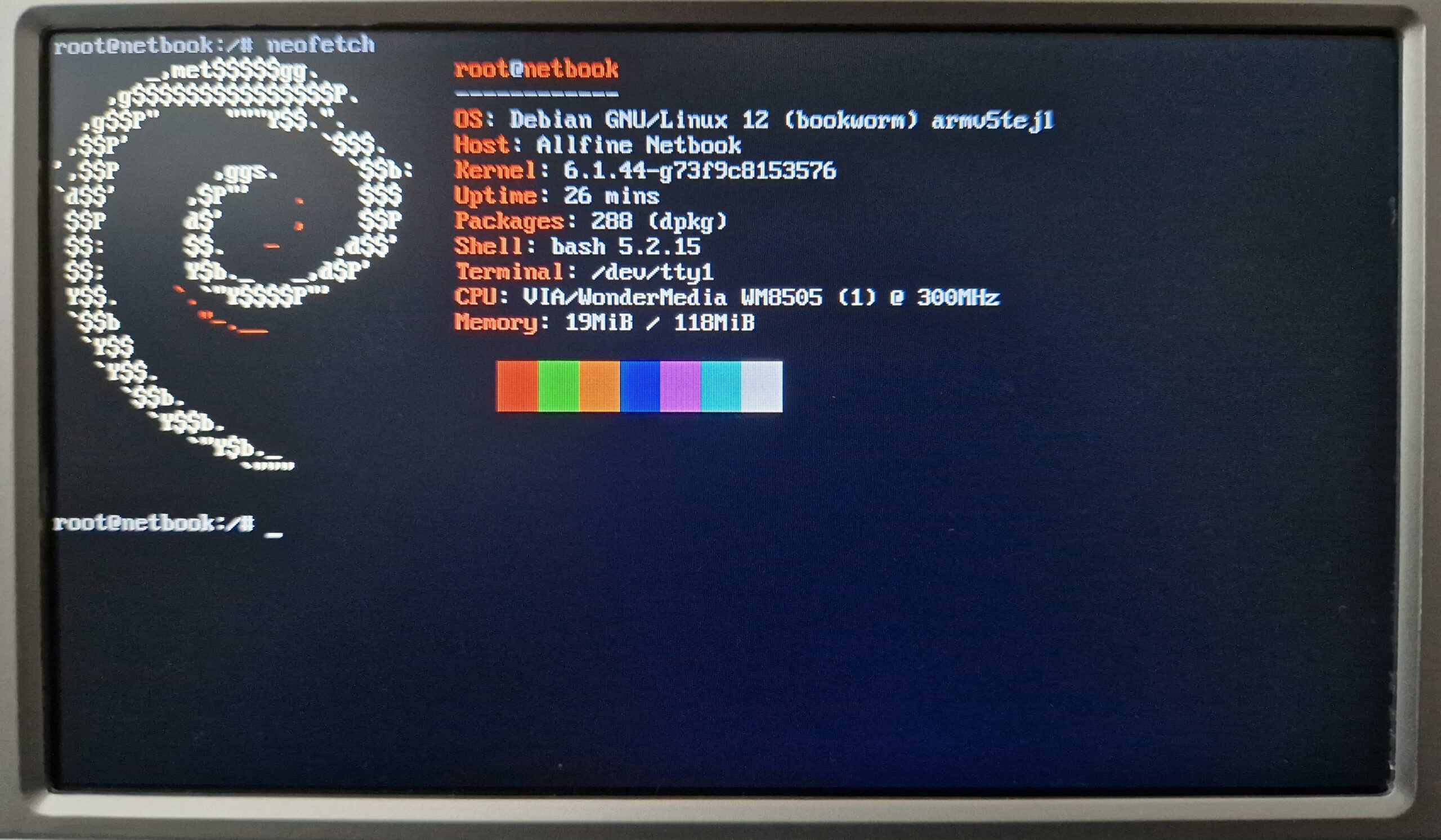
System-information utilities display useful details about the operating system, kernel, desktop environment, processor, memory, and other components. Fastfetch is a modern option designed for quick system information display.
These tools are convenient when diagnosing compatibility issues or sharing system specifications while troubleshooting. They can also help users quickly confirm that a system is running the expected kernel and desktop environment.
6. lm-sensors for Hardware Temperatures
Temperature monitoring is important for systems that perform demanding workloads. lm-sensors can provide information about available hardware sensors, including CPU temperatures and fan-related readings when supported by the hardware.
High temperatures may indicate insufficient airflow, excessive workloads, dust buildup, or cooling problems. Monitoring temperatures periodically can help users notice potential problems before they become serious.
7. smartmontools for Drive Health
Storage devices can develop problems without immediately showing obvious symptoms. smartmontools provides access to SMART information supported by compatible drives.
Users can examine drive health indicators and identify warning signs that may justify creating a backup or replacing a failing storage device. It should not replace a proper backup strategy, but it can provide valuable early information.
Linux Tools Worth Installing at a Glance
| Tool | Main Purpose | Useful For |
|---|---|---|
| htop | Process monitoring | CPU and RAM management |
| btop | Resource monitoring | Overall performance |
| iotop | Disk activity | Storage troubleshooting |
| ncdu | Disk usage analysis | Finding large files |
| Fastfetch | System information | Hardware and OS details |
| lm-sensors | Temperature monitoring | Hardware health |
| smartmontools | Drive monitoring | Storage health |
| curl | Network transfers | Testing connections and APIs |
| rsync | File synchronization | Backups and file management |
| tmux | Terminal sessions | Remote and multitasking work |
Tools for Networking and Connectivity
Network problems can sometimes appear to be general performance issues. A slow download, unstable connection, or unavailable service may make an otherwise healthy Linux computer feel sluggish.
8. curl for Network Testing
curl is a versatile command-line utility for transferring data through network protocols. It can also be used to test whether a web service is responding correctly.
Developers and administrators can use it to inspect responses, test APIs, troubleshoot connections, and verify whether a remote service is accessible. Its flexibility makes it valuable far beyond simple file downloads.
9. rsync for Efficient File Transfers
rsync is designed for synchronizing files and directories efficiently. Instead of repeatedly copying everything, it can transfer only the changes needed to bring two locations up to date.
This makes it useful for backups, server maintenance, project synchronization, and moving large collections of files. For pblinuxtech users handling important documents or development projects, learning rsync can save both time and storage bandwidth.
Terminal Productivity Tools
Linux users often spend considerable time inside the terminal. Improving terminal workflows can therefore have a direct impact on productivity.
10. tmux for Persistent Terminal Sessions
tmux allows multiple terminal sessions to operate within a single terminal environment. More importantly, sessions can remain active even when a remote connection is interrupted.
This is extremely useful for server administration, development tasks, long-running commands, and remote work. Users can reconnect to an existing session instead of starting everything again.
11. ripgrep for Faster File Searching
Searching through large projects with traditional text-search commands can become inconvenient. ripgrep is optimized for searching text across directories and codebases while respecting common ignore rules.
Developers can use it to find functions, configuration values, error messages, or specific text across thousands of files. Its speed makes it particularly useful in large projects.
How to Choose the Right Linux Tools
Installing every available utility is unnecessary. A better approach is to choose tools according to your actual workload. Someone using Linux for browsing and office work may need only basic monitoring and storage utilities, while a developer or server administrator may benefit from networking, synchronization, and terminal-management tools.
Before installing a new utility, consider what problem it solves. pblinuxtech users should prioritize tools that provide clear value, are actively maintained, and fit naturally into their workflow.
A simple toolkit can include:
- A process monitor for CPU and memory usage
- A storage analyzer for finding large directories
- A hardware monitor for temperatures
- A drive-health utility for storage checks
- A network utility for connectivity testing
- A synchronization tool for backups
- A terminal multiplexer for long-running tasks
Keep Your Linux Toolkit Lightweight
More software does not automatically mean better performance. Installing unnecessary background services can consume resources and create additional maintenance responsibilities. Command-line utilities are often attractive because many of them run only when needed.
It is also important to keep installed packages updated through your distribution’s normal package-management system. Before using a tool for system-level changes, understand what it does and avoid copying commands blindly from unknown sources.
For pblinuxtech users, the best Linux setup is one that remains predictable, efficient, and easy to maintain. A smaller collection of well-understood utilities is usually more useful than a large collection of applications that are rarely used.
Practical Performance Routine
Linux performance does not require constant tweaking. A simple maintenance routine can help users identify problems early.
Start by checking CPU and memory usage when the system feels slow. If storage activity appears unusually high, investigate disk usage and active processes. Periodically inspect available disk space and review large directories. On systems with demanding workloads, monitor temperatures and drive health as appropriate.
It is also wise to maintain regular backups before performing major system changes. Performance optimization should never come at the expense of important data.
Conclusion
The Linux ecosystem offers an impressive range of tools for monitoring, maintenance, troubleshooting, networking, storage management, and productivity. Utilities such as htop, btop, ncdu, iotop, lm-sensors, smartmontools, rsync, curl, and tmux can give users greater control over how their systems operate. For pblinuxtech users, the smartest strategy is not to install everything available. Instead, select tools based on real needs and learn what each one actually tells you. With the right combination of monitoring, maintenance, and productivity utilities, Linux can remain fast, organized, and dependable. A carefully chosen toolkit also makes troubleshooting easier because users can identify resource bottlenecks instead of guessing about them. By combining sensible software choices with regular updates, storage management, hardware monitoring, and reliable backups, you can build a Linux environment that delivers strong performance without unnecessary complexity.